Alex Murray
1 November 2018
Snap is a Linux application package management system which allow developers to easily publish self contained software packages (snaps) that work across many distributions and versions of Linux. Snaps have security at their heart, and are designed to ensure all applications support the principle of least privilege / authority. That is, each package only has access to the common groups of resources that it requires to perform its intended function.
To support this, each package is sandboxed so that it runs in a constrained environment, isolated from the rest of the system – this is achieved via a combination of AppArmor, seccomp, mount namespaces, cgroups and traditional UNIX permissions. To then allow a package access to common resources, the snap system provides ‘interfaces’ to which packages can be granted access as required or determined by the user. This includes things like files within the user’s home directory, or files on removable media, as well as hardware devices such as webcams or audio devices (for a full list of interfaces see the snap documentation). Interfaces can also be provided from one snap to another, for example to let one snap provide services via DBus to another snap application, or to provide shared content from one snap to another.
Access to a given interface corresponds to a particular permission for a snap package.
Interface Connections
A snap interface is provided by a slot declared by a given snap package (the core snap itself provides many slots), whilst other snaps consume a given interface by declaring themselves as a plug for that interface. Each snap declares the interfaces it requires (ie. by listing these as plugs) and are then connected to the corresponding slot by the snapd daemon either automatically, or manually, depending on the interface. Some interfaces are connected automatically to all snaps that declare a plug to them, as they present a low risk or the interface is generally useful to most snaps (such as the desktop and network interfaces). Other interfaces (such as the removable-media or cups-control interfaces) must either be connected manually by the user, are auto-connected via a specially granted exception from the Snap Store or are auto-connected by a custom device-specific gadget snap. Snap Store reviewers typically only grant exceptions when it is deemed the utility of the application will be greatly diminished if the requested interfaces are not connected automatically.
The interfaces used by a snap can be shown in two ways, either graphically through the Software application or via the command-line. For each installed snap, a Permissions button is shown in Software that lists the interfaces the snap declares plugs to, and allows the user to manually connect or disconnect each interface as desired.
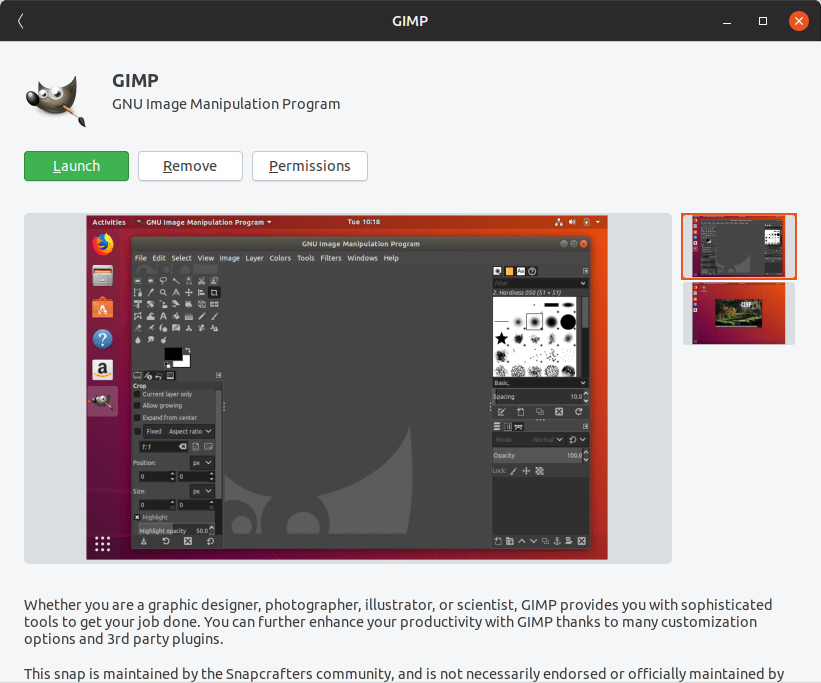

The same information is also exposed via the command-line via the snap interfaces command.
$ snap interfaces gimp
Slot             Plug
:home            gimp,gnome-characters,gnome-logs
-                gimp:cups-control
-                gimp:removable-media
(...)
In this case, as the cups-control and removable-media interfaces are not connected for the gimp snap, there is no corresponding slot listed.
When connecting an interface, the user is prompted to authenticate as an administrator to ensure interface connections cannot be made by users without appropriate permission and ensuring the user is always in control of the permissions for each snap application.
I hope this post gets you thinking about how snaps could work for you. As we have seen, interfaces provide a means for snap applications to share and access common resources, whilst respecting the principle of least privilege and providing the user ultimate control over the permissions of a given application. If you are interested in learning more about using snaps, please visit https://snapcraft.io.